 NEKKO AGENT
Docs
NEKKO AGENT
Docs
Introduction
Nekko Agent walkthrough
A guided tour of Nekko Agent, from install to your first agentic edit. Screenshots are from the running app.
- 1. Install
- 2. Connect a model
- 3. The unified chat
- 4. The Context Inspector
- 5. Guardrails & sandbox
- 6. Projects & the codebase index
- 7. Memory
- 8. Connectors
- 9. The mascot
1. Install
Download a build for your platform from the Releases page:
| Platform | Artifact |
|---|---|
| Windows | NekkoAgent-<version>-x64.exe (NSIS installer) |
| macOS | NekkoAgent-<version>-arm64.dmg (Apple Silicon) |
| Linux | .AppImage or .deb |
Or run from source:
git clone https://github.com/nekko-labs/nekko-agent
cd nekko-agent
npm install
npm run dev          # launches the desktop app
Nekko Agent stores everything locally (under your OS app-data dir): settings, sessions, memory, and a usage log. No account, no telemetry.
2. Connect a model
Open the Models tab. This is where Nekko Agent differs from most tools, local model servers are first-class, not an afterthought.
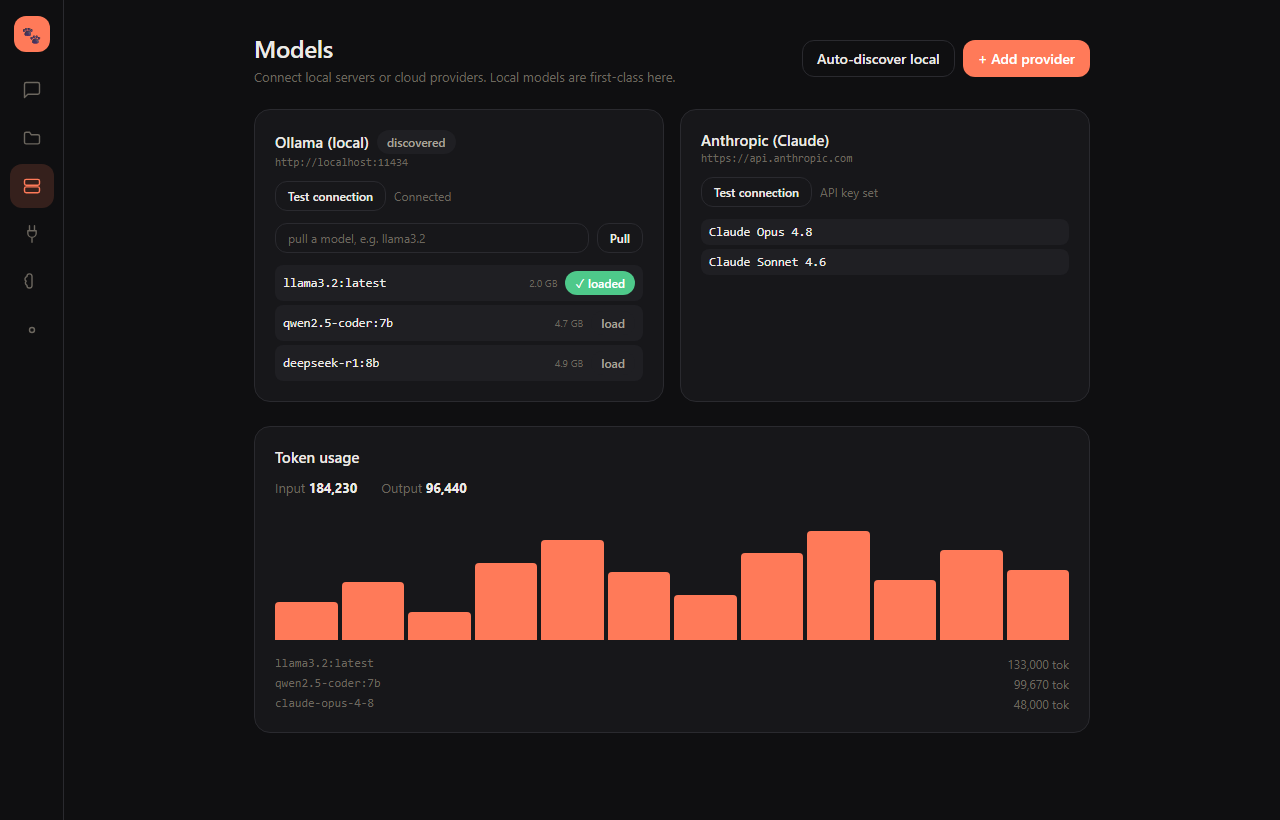
- Auto-discover local probes
localhost:11434(Ollama),:1234(LM Studio), and:8000(vLLM). Anything running is added with one click. - Connected local servers and cloud providers are grouped, and the groups sit side by side when the window has room. The provider groups use the full window width, and each sits in a container with a faint border and tint in its colour (green for local, blue for cloud). A group is never split: when it has more cards than fit on a line, they wrap inside its own container.
- Add provider lets you configure a server manually, or add a cloud provider - Anthropic, OpenAI, OpenRouter, or any OpenAI-compatible endpoint (just paste the base URL + key).
- For Ollama, you can pull new models and load / unload them into memory right from the card.
- The Token usage panel charts input/output tokens over time and breaks them down per model and per provider.
Tip: set a default provider + model in Settings so new chats start ready to go.
Can't find a setting? Click the search icon at the right of the Appearance heading in Settings and type a word such as "prompt". A second after you stop typing (or straight away when you press Enter) the page scrolls to the first match and highlights it. Use the up/down arrows (or the arrow keys) to step through the rest, and the X or Esc to close the search.
Example: connect an LM Studio server
- In LM Studio, load a model and start its server (Developer → Start Server).
- In Nekko Agent: Add provider → LM Studio, set the Base URL to your server,
e.g.
http://10.5.0.2:1338(you can paste justhost:port, Nekko Agent appends/v1automatically). No API key needed. - Test connection → the model dropdown fills with whatever LM Studio is serving.
- Pick the model in the chat header and go.
Reasoning models (Gemma, DeepSeek-R1, Qwen-thinking, etc.) are first-class: their chain-of-thought streams into a collapsible Thinking block above the answer, so you see progress during long reasoning and the answer stays clean.
3. The unified chat
Defaults for new agent windows
Choosing a model in a chat or in Add window remembers that model and its provider for the next agent window. Choosing Auto remembers Auto, not whichever model it resolves to. Browsing a provider or opening an existing chat does not change this default; existing chats keep their own model choices.
A successfully changed Permissions mode (Ask, Guardrails or YOLO) becomes the default for new chats. Effort is set per chat (a chat that never picked one follows the app default), and the saved Execution mode is reused through the existing setup flow. Incognito and Offline are different: they apply only to the chat where you enable them and are never turned on globally for new windows.
The Mode button opens the Mode panel. Saved modes run down its left side; the settings sit in three columns: Environment (run on your machine or in a Sandbox, and whether edits go to a separate worktree), Model (where this chat's models run, and its effort), Privacy (Incognito, internet access, folders, approvals, tools, MCP servers and connectors) and Approach (skills, project rules and memory). Every setting has a line underneath saying what it does. Tools, MCP servers, Connectors and Skills open a list out the panel's side.
The MCP servers and Connectors lists switch each one on or off for this chat only. A server switched off here keeps running for your other chats, and a connector switched off here is simply not read for this chat's context. Neither list can turn on a server that is off in Settings or a service that is not connected; links at the bottom go to those pages. Sub-agents a chat starts inherit its effort, servers and connectors.
Click a saved mode to apply all of its settings to the chat at once. Change anything afterwards and the panel offers Revert or Update for that mode, or Save mode to keep the combination under a new name. Click the star beside a mode to start every new chat in it; click it again to go back to your last-used defaults. A mode also remembers the chat's effort, MCP servers, connectors, project rules and memory. You start with four modes:
- Cloud only: the chat runs on cloud providers only. Its model menu lists only cloud providers, and the engine refuses a model on this computer.
- Fusion: Auto picks the model for each turn and may move a turn between your local and cloud models. It moves only to a model that is as capable or better, either because it is cheaper (a local model counts as free) or because the current provider's usage limit is spent. The turn says why it moved.
- Local only: models on this computer only, with the internet off: no web tools, connectors or MCP. Nothing leaves your computer.
- Risky business: for code you don't trust. The chat runs in a Sandbox container with no network, and asks before every action. With a local model the whole chat stays on this computer; with a cloud model, only the conversation with that model goes out.
Models run in the Model column sets the same thing by hand: click Cloud only, Fusion or Local only, and click the highlighted one again to stop pinning. Local only needs a local model and Cloud only a cloud one; when the chat's model doesn't fit, the panel says so and leaves the setting as it was, so pick the model first. A mode never includes your folders, and applying one that runs in a Sandbox opens the Sandbox setup first.
Under Approach, Skills holds the work modes: Default, Better review, Design and Best output. Picking one changes how the agent works in that chat and brings the matching skills with it (for example Better review applies /review, /security-review and /review-council), so you don't have to remember or type them. A work mode applies to that chat only, costs more tokens and time than Default, and never changes Permissions, tools, Offline or Incognito. Rows marked Coming soon (model router, system prompt) are not available yet.
Project rules decides how much of a repository's own agent instructions the chat reads:
- Rules (the default): the root
AGENTS.md,CLAUDE.md,.cursorrules,.windsurfrulesandGEMINI.md, plus the rule folders other agent tools use:.agents/rules,.claude/rules,.cursor/rules,.kiro/steering,.windsurf/rules,.github/instructionsand.github/copilot-instructions.md. A rule that applies everywhere goes into every turn. A rule scoped to some files (Claude'spaths:, Cursor'sglobs:, Copilot'sapplyTo:, Kiro'sfileMatchPattern:, Windsurf'sglobtrigger), a rule with only a description, and anAGENTS.mdin a subfolder are listed in a short Project rules index instead; the agent reads one when it works on matching files, and its full text goes in when you attach a matching file. Manual rules are left out until you attach them. - Root files: only the root files, as before rules folders were read.
- Off: no project guidance at all, for a repository whose instructions you do not trust.
Memory decides which of your memory notes the chat reads: Everything (global and this chat's folders), Project (only the folders') or Off. An incognito chat reads no memory notes whatever this says. Sub-agents inherit both settings.
A successfully completed reply should not retain a stale Reply interrupted warning. When the final transcript records successful completion, that terminal record takes precedence over missing older tool bookkeeping. Explicit interruption markers, provider failures, and intentional stops remain visible; the app does not rewrite your transcript to dismiss them.
The left navigation panel curves into its tails about 10px beyond the icon rows, with matching curves at both ends. Opening a wall window reveals the incoming window and slides existing windows aside, without a separate corner-resize animation. Reduced motion disables the wall transitions.
On the Agents wall, the agent, image, and terminal icons with small bottom-right + indicators create new windows. A subtle divider separates them from the Focused and Dynamic view modes. Dynamic uses a lightning bolt icon. For an even Grid, open Settings > Command Center, choose Grid under Wall layout, and set Grid rows and Grid columns (1 to 6 each). These dimensions are remembered when switching layouts. The existing Ctrl/Cmd+Shift+1, 2, and 3 shortcuts still select Focused, Dynamic, and Grid respectively; saved Grid layouts reopen unchanged. In Focused view, New agent fades straight into the new chat's prompt; once you send your first message, the composer expands into the full chat. When the wall has no windows left, it switches to Focused and shows that same new-chat prompt (reusing an unused chat if you have one) on a glass composer, so there is always somewhere to type. Focused mode hides the individual window title strip and outer border; Dynamic and Grid retain their window controls. Agents and Monitors use short reversible transitions, disabled with reduced motion. The right-hand dock is headed Monitors. Inside a window header, the larger accent-colored Focus icon sits immediately beside Minimize and opens that window in Focused view. Minimize removes only the wall window, keeping the chat in the Agent panel. The left navigation keeps its position and tint, with broad curved wings above and below the destinations.
The Chat tab is the heart of the app. There are no separate "chat", "cowork", and "code" modes, it's one thread. Ask a question, or hand off a task and let Nekko Agent act on your machine through tools (read / write / edit files, glob, grep, list dirs, run shell commands).
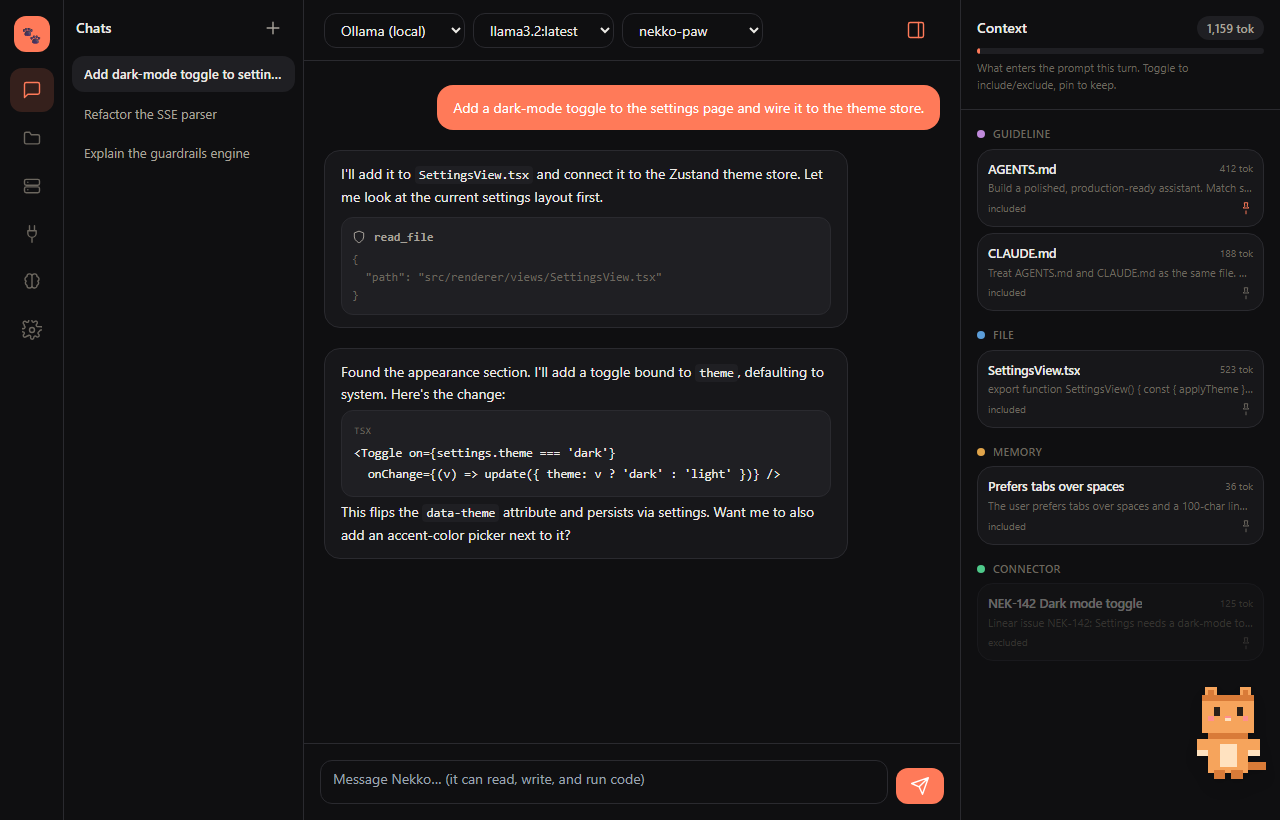
- Pick the provider and model from the header dropdowns at any time.
- Assistant messages render markdown and code; every tool call the model makes shows up as a card so you can see exactly what it did.
- Streaming is live; hit Stop to abort a turn.
- Tools shows a friendly action label, the literal tool name and a full wrapping description. Search matches labels, names and descriptions. Use the checkboxes to enable tools; keyboard focus and Space activation are supported. The menu (in the agent window's footer) lists the agent's tools by category: File system, Shell & processes, Desktop, Online, Agent and MCP servers. Turn single tools or a whole group on or off for this chat.
- The globe beside it blocks the internet for this chat (local models only). Online tools (fetching pages, the browser), MCP servers, connectors and sub-agents are turned off; file, shell and desktop tools keep working. Shell commands are not network-sandboxed, so a command can still reach the network.
- In the model picker, a local model shows its short name with the file it lives in beneath.
- Answers to the agent's clarification questions stay visible in the chat as Q/A replies, including when reopening an existing conversation. Selected choices and your typed note remain visible; skipped questions say they were not answered. These reply rows do not create another prompt or offer edit/rewind actions.
Keyboard shortcuts: Nekko Agent has a command palette (think Cmd-K everywhere):
| Shortcut | Action |
|---|---|
Ctrl/Cmd + K |
Open the command palette |
Ctrl/Cmd + N |
New chat |
Ctrl/Cmd + F |
Find in this chat |
Ctrl/Cmd + \ |
Toggle the context panel |
Ctrl/Cmd + Shift + E |
Complete the focused agent chat |
Ctrl/Cmd + Shift + M |
Minimize the focused agent or terminal board window |
Ctrl/Cmd + Shift + Delete |
Delete the focused chat or close its terminal, with confirmation |
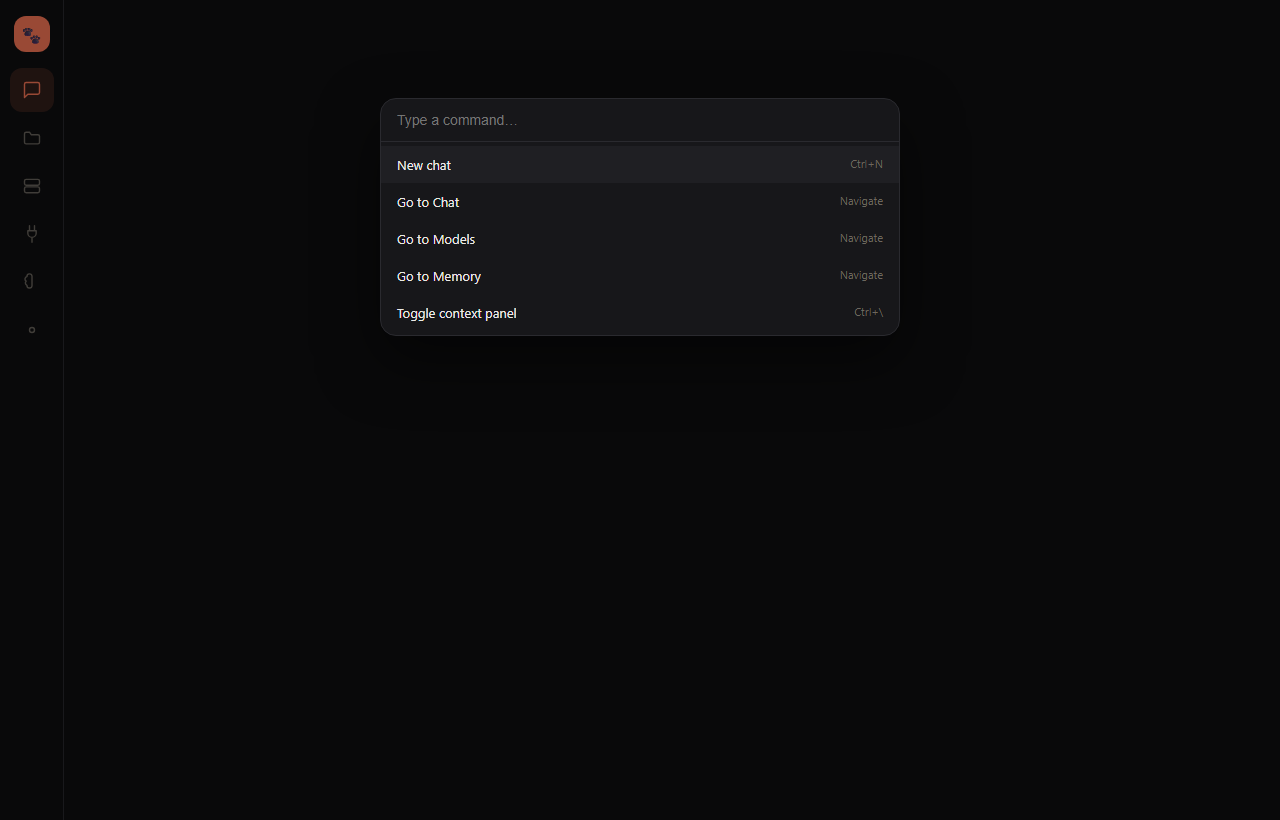
Find in this chat: click the magnifier in the chat window's header (the first icon, left of Changes and Files), or press Ctrl/Cmd + F. A small bar opens at the top right of the conversation. Type a word or phrase and every place it appears is highlighted, with the one you are on in solid yellow and a count that always starts at 1 of 29 (the first match from the top). Matching is by whole word and ignores case, so scroll finds Scroll and SCROLL but not scroller or autoscroll. Use the up and down arrows (or Enter / Shift+Enter, or the arrow keys) to step through matches; they wrap around at the ends, and a match far up the conversation is brought into view. Esc or the X closes the bar and clears the highlights. It searches the message text you see, not tool steps, reasoning or link addresses. On the Agents wall each window has its own magnifier in its title bar, and the shortcut from the shared composer searches the window it is talking to.
Copy and paste in a terminal. Right-click a terminal for Copy, Paste, Select all and Clear terminal. On Windows and Linux the keys work the same way as in Windows Terminal and VS Code:
| Shortcut | Action |
|---|---|
Ctrl + C |
Copy the selection; with nothing selected it interrupts the running program, as always |
Ctrl + Shift + C, Ctrl + Insert |
Copy the selection |
Ctrl + V, Ctrl + Shift + V, Shift + Insert |
Paste |
On macOS, Cmd + C and Cmd + V copy and paste, and Ctrl + C always interrupts. The read-only Agent commands log can be copied but not pasted into. Clear terminal clears the screen and scrollback in the window only; the shell keeps running.
Add windows and read the dock
The Agents toolbar provides direct New agent, New image session and New terminal actions, with no ellipsis or overflow button. The empty wall can still open the full window picker. Its Chat, Media and Terminal categories remain horizontal; opening it does not change the wall layout.
Each repository heading in the Agent panel also has a plus button for a new agent chat and a terminal button for a new shell in that repository. These actions use the repository you clicked, not another selected or default folder. In Focused view, the new window becomes visible; other layout modes stay unchanged. On narrow screens, the agent list closes after successful creation so it does not cover the result. If a wall filter would hide the window, it switches to All. The controls wait for creation to finish before accepting another click for the same repository, and failures show an error you can act on and retry.
Utilization lists each enabled cloud provider on its own row. In Budget, choose today, 1wk, 1m, 6m, 1y or all-time; the active range is tinted. Spend, tokens, top agent, local tokens, savings and compared model membership all follow that UTC range, not lifetime totals. See usage limits and prices.
These 2026-10-13 changes are implemented and unit/fixture interaction tested. Matching captures exist, but image/motion inspection remains pending; earlier walkthrough pictures are not visual proof of this batch.
Find a chat
The magnifier beside + at the top of the Agents panel opens a chat finder. It starts with your latest chats, newest first, each with how long ago it was used (days up to 30, then months). Type to filter by title, first prompt or latest reply; the search runs once you pause typing, or straight away with Enter or the Nekko button. Click a chat (or press Enter) to open it. X or Esc closes the finder. Incognito chats are never listed.
Complete, minimize, and delete
Hover a window's lifecycle buttons to see the action and hotkey. Shortcuts target the window you are using, not every chat. The X in a chat window's top-right corner (and on its card) is Complete: it closes the window and keeps the chat under its group's Show completed control in the left Agent panel for 60 days, where you can read or restore it. Right-click a completed chat there for Restore chat or Delete forever without opening it. Completing never deletes; Delete is a separate trash action. Agents you have not touched for a month are completed for you the same way; change or turn this off under Settings → Complete idle agents after (1 week, 2 weeks, 1 month, 3 months or Never). Pinned, running, waiting and sub-agent chats are never completed automatically. Minimize removes only the board window: the item remains in the Agent panel, and a terminal keeps running. Terminals do not have completed history; Close ends their process.
Settings has Show tips, enabled by default. Your first successful completion highlights Show completed with a dismissible explanation. On a narrow screen, the existing agent list drawer opens automatically to reveal Show completed without taking focus. If you close it, the highlighted Agents button lets you return to the destination. Opening or closing the drawer does not dismiss the tip. Turning tips off does not disable deletion warnings. The in-app delete dialog offers Skip future deletion confirmations; only choose it if you want permanent deletions without another prompt. Re-enable Confirm deletions in Settings at any time. General chats no longer display a redundant missing-project label.
A composer that follows your draft
In the Command Center, one docked composer targets the selected agent window. Click another agent window to write in that chat's context, or use the dock picker to move the composer above or below the wall.
The reply editor grows with new lines and wrapped text, then shrinks when you delete them. In the bottom dock it grows upward, leaving the agent board above it in its own scroll area. Once the draft reaches the height cap, only the editor scrolls; the header, send controls, queued prompts, images and skill rows stay inside the composer ring. A saved manual height remains a preferred minimum, not a ceiling that prevents a longer draft from growing.
Drag the line above the composer to resize it. It snaps to two points: its default size and full size. Release near either one and it lands exactly there. Snapping back to the default clears the saved height. Double-click the line to reset it any time.
Continue after an interrupted tool
After Stop or an interrupted delegation, either type a follow-up or use Resume. Both paths repair incomplete tool-result history before the next model request. Saved real results are retained; missing results are marked interrupted rather than silently rerunning the tool. A typed follow-up stays your own saved message. While a reply is running, queue your follow-up or interrupt the current reply; a second direct send is rejected without discarding the queue.
Delegation still waits synchronously for the child. Parent-callable child status and cancellation while waiting are planned, not available through this repair.
Follow delegated work without opening every detail
Delegation cards start collapsed, including while a child is working or returning a large result. Their compact, plain-text activity sentence shares its status with the plan's sub-agent list and the working-subagent indicator:
- Working: the child is thinking, writing or using a tool.
- Waiting: it needs an answer or approval, or is waiting to retry.
- Completed, Failed or Stopped: recorded terminal events, not guesses based on the presence of a stored reply.
Expand a card to read the full task and result in bounded scroll areas. This does not resize the entire agent window. Summaries use existing local events, without an extra model request or additional transmission.
Live card-to-child matching is best effort, using the parent, title and creation time. There is no authoritative spawn-call child ID yet. Ambiguous matches and historical calls without observed events do not borrow another child's status; they retain a task summary or report that no current run status is recorded.
Attach photos, videos and any file
The + button beside the message box opens a menu with an icon per row: Photo / Video, File, Folder and Skill. Photo / Video follows the model you picked: a model that takes images (Claude, GPT-4o and later, Gemini, Llama vision, LLaVA, Qwen-VL and friends) gets the row enabled; a text-only model greys it out and the menu says why, so a picture is never attached to a model that cannot see it. Video input is rarer (Gemini, and OpenRouter models that list it); when only photos are accepted the row says photos only. For a local model the app cannot classify, the row stays enabled and the first send tells you.
You can also paste (Ctrl/⌘+V or right-click → Paste) or drop anything onto the message box: a screenshot, a clip, a PDF, a Markdown file, a spreadsheet, a file copied from Explorer or Finder. Photos and videos the model can see travel with your message. Everything else becomes a file attachment: a file copied from disk is attached in place, a pasted blob with no home (an image copied from a browser, a PDF from an email) is saved under the app's data folder first. Files whose bytes the model will not read (PDFs, Office documents, archives, or a photo for a text-only model) still appear in the strip above the message box, marked name only, so nothing disappears silently. Videos are capped at 40 MB in the message; larger ones can still be attached as files.
Diagrams, tables and code in replies
Replies render Markdown: tables, code blocks with a copy button, images, and
fenced ```mermaid diagrams drawn inline. Hover a diagram for Copy
(the Mermaid source) and Expand, which opens it in a full window where the
mouse wheel zooms, dragging pans, and a double-click resets; Escape or Close
returns to the chat. The assistant is asked to reach for a diagram when it
explains a flow or a structure, a table when it compares, and a code block for
anything you might copy.
Photos from the web
When the agent finds a picture while searching or browsing ("what does the HAMILeX MH-853 look like?"), it can show it in the reply. Several photos in a row appear as a gallery. Photos load as you scroll to them, a few at a time.
Click a photo (or any image in the chat) to open the photo viewer: the picture as large as the window, with Copy, Save… and Close, and for a gallery the ‹ › buttons or the arrow keys to step through. Right-click a photo for Copy image, Save image…, Copy image address and Open original in browser.
How it stays safe: the chat never loads a web address itself. Nekko fetches the picture for it, only from public websites (never this computer or your home network), only real image files (PNG, JPEG, GIF, WebP, AVIF) up to 10 MB, and without your cookies or logins. A photo loads by itself only when its address came from a search, a page or your own message in this chat. If the agent wrote an address out of nowhere, the photo shows a Load image button naming the site it would contact, so a made-up link cannot quietly send anything from your chat to someone else's server.
Plan and capacity at a glance
The plan icon in an agent window opens or closes only that chat's plan, sub-agents and queue panel. Each chat remembers its own choice locally. Narrow windows fold the panel automatically without changing that choice.
The context-window gauge has a subtle green background below 60% full, yellow from 60% to below 85%, and red at 85% or higher. Counts remain estimated; an unknown window limit stays neutral.
In Agents, the Hardware panel names each detected GPU and shows its own utilization. Missing readings say Unavailable rather than zero; switching monitoring off says Monitor off. VRAM remains the aggregate memory reading across devices. Where your machine reports them, CPU, Memory and each GPU row also show a temperature at the right of the label, orange from 80°C and red from 90°C. NVIDIA cards report theirs through their driver; Linux reads its hardware sensors; on Windows the CPU reading comes from the ACPI thermal zone, which many desktops do not publish, so it can be missing there.
Using more than one screen. In Dynamic view, the screens button at the right end of the wall toolbar shows how many screens are in use. Hover it to see your screens in a row: click one to open a full Nekko window on it (it swipes in from the left edge), click again to close it (it shrinks into the right edge). The main window's screen is always on. Each screen's window has its own left navigation, toolbar and wall, so one screen can show agents while another shows Settings. Under View options, choose Prioritize empty windows to send new agents to an empty screen first, or Prioritize the main window to keep new agents on the main screen. A window always keeps the agents you start from it, and your screens are reopened the next time you launch.
4. The Context Inspector
The right-hand panel (toggle it with the panel icon) is Nekko Agent's signature feature. It shows exactly what is entering the prompt this turn, grouped by where it came from:
- Guidelines:
AGENTS.md/CLAUDE.md/.cursorrulesdetected in your workspace folders, rules from.agents/rules,.claude/rules,.cursor/rulesand the other rule folders, and a Project rules index of the scoped ones (see Project rules in the Mode panel) - Files: anything you've attached
- Memory: global / per-project notes, as the chat's Memory setting allows
- Connectors: issues, messages, or docs pulled in from Linear/Slack/etc.
Each item shows a token estimate, can be toggled off to exclude it, or pinned to always include it. The bar at the top shows how much of the model's context window you're using. No more guessing what the model "saw", you can see and shape it.
5. Guardrails & sandbox
Open Settings. Two layers keep Nekko Agent from doing something you didn't intend.
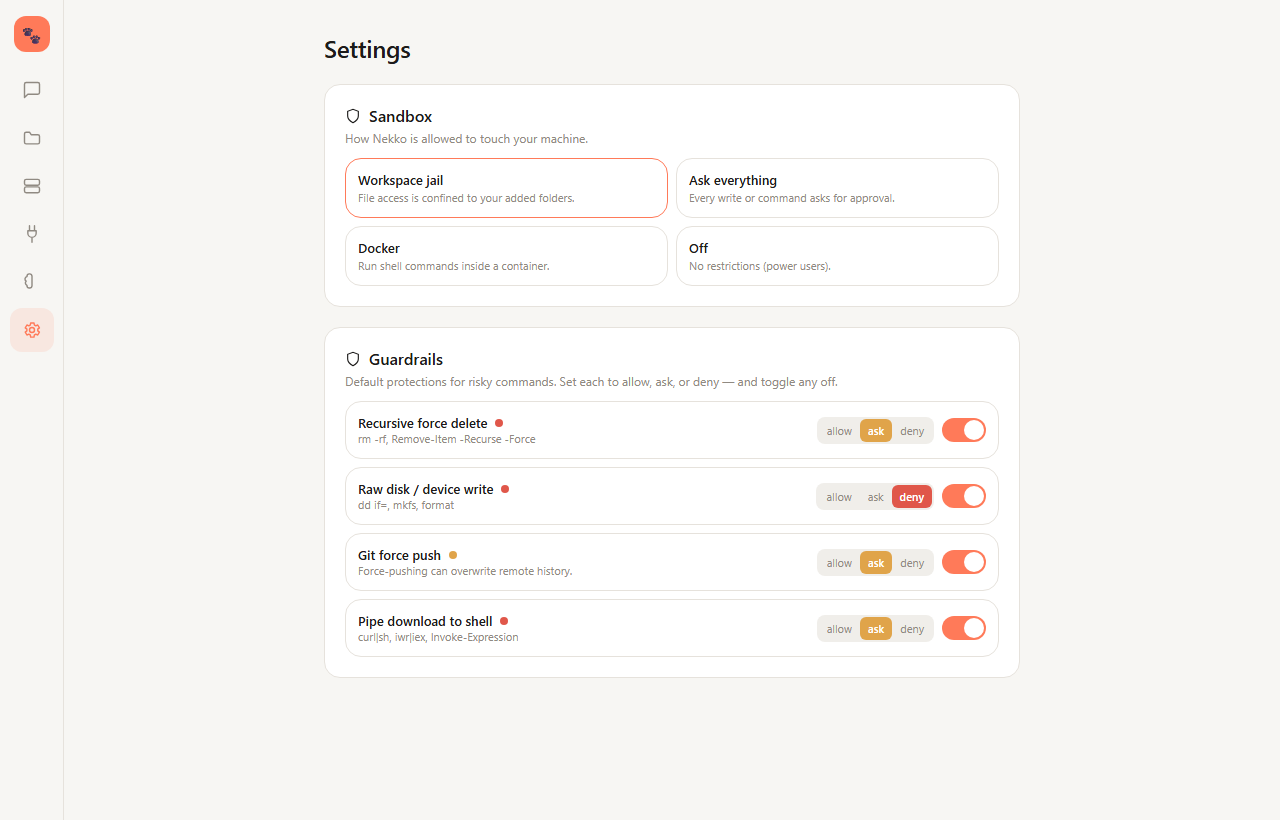
Sandbox mode controls how the agent may touch your machine:
| Mode | Behavior |
|---|---|
| Workspace jail (default) | File access confined to your added folders; symlinks and junctions that point outside them are refused |
| Ask everything | Every write or command requires approval |
| Docker | Run shell commands inside a container if Docker is present |
| Off | No restrictions (power users) |
Guardrails classify risky shell commands and decide whether to allow, ask,
or deny, per rule, each toggleable. Ships with sensible defaults: recursive
force-delete, raw disk writes, git push --force, curl | sh, privilege
escalation, secret/.env access, and more. When a command matches an "ask" rule,
the chat shows an approval bar with the exact command and its severity before
anything runs.
6. Projects & the codebase index
The Projects tab manages your workspace folders, and yes, multiple roots are supported. Each folder is indexed for files and code symbols (functions, classes, interfaces, types) so the agent and search have a fast map of your code.
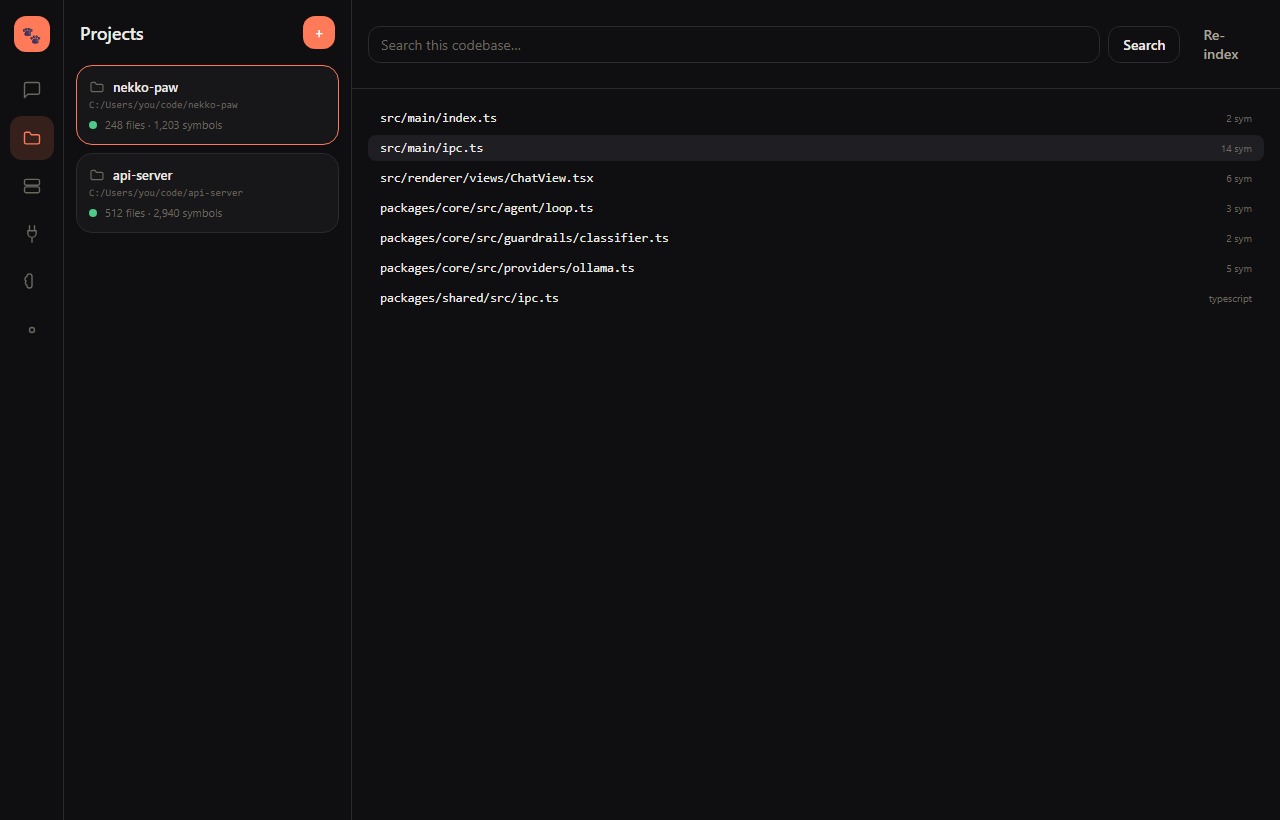
- Add a folder and it indexes in the background.
- See file + symbol counts and index status per project.
- Search across the indexed files instantly, or browse the file list with per-file symbol counts.
7. Memory
The Memory tab is a simple, durable knowledge base stored as plain markdown. Keep global memories (preferences, conventions) and per-project memories. Entries are surfaced in the Context Inspector and injected automatically, so Nekko Agent remembers how you like to work across sessions. The Mode panel's Memory setting limits a chat to its project's notes or to none, and an incognito chat reads none.
8. Connectors
The Connectors tab links external sources so their content can be pulled into context: Linear, Slack, Discord (token-based), and Gmail / Google Drive (OAuth). Tokens are stored locally. Connect one, fetch a sample to confirm it works, and the results become available to the assistant.
9. The mascot
Nekko Agent is the 8-bit cat that lives at the edge of the window. It waves to say hello, peeks in from the side, and "makes cat biscuits" (kneads its paws) while the model is thinking. Don't want it? Toggle it off in Settings → Appearance.
10. Appearance and page recovery
Nekko Agent starts in your system's light or dark mode. Leave the theme on System in Settings → Appearance to follow system changes, or choose a light or dark preset to keep that look. The pixel Nekko in the desktop's top bar stays the same as you move between pages; the heading names the page.
If Settings or Model Server cannot load, the page shows the problem and a Try again button. On desktop, start a stopped service from the tray menu, then retry. In the Local Web UI, check that the Nekko service is running. Existing content stays visible when a refresh fails.
Agent shell commands are noninteractive: stdin closes immediately, so prompts
receive end-of-file rather than waiting for an answer. The shell tool has a
120-second execution limit and up to five seconds of stop cleanup; use
start_process for long-running jobs. On Windows, date /t displays the date;
bare date asks to change it. If a command appears stuck, Stop cancels its turn
and requests process-tree termination. An unresponsive OS process may still
need separate inspection even after the tool reports cancellation.
A failed chat reply preserves completed steps. Retry continues from saved history, and you can send a new message instead. For Anthropic requests, Nekko bounds supported outgoing image copies to 1568 pixels per side, including old attachments and screenshot evidence. This prevents the stricter image-dimension limit in requests with more than 20 images from trapping subsequent replies. Saved originals are not resized or removed. Oversized animated images may be sent as a static PNG. Corrupt or unsupported files, image-count limits, payload size and context limits can still cause rejection; retrying those unchanged inputs is not a guaranteed recovery. If such an error persists, use a new chat with valid, smaller attachments and include the exact error in a bug report.
If a page or section cannot be displayed, use its Try again button to reopen it. Navigation stays available so you can move to another page. If the problem persists, include the displayed error and your app version and OS in a GitHub issue.
Questions or ideas? Open an issue on GitHub.
Reordering project groups
Drag a project group header in the agent panel onto another group to place it before that group. A quick gap opens above the hovered group (beside it in the horizontal panel) and closes when you move away. You can drop on either the header or an agent card in that group. The project order is saved. Dragging an individual agent card still reorders or moves that agent, rather than the whole group.
Agent window controls
Changes is the leftmost header control. When the agent edits files it uses a muted background without an outer glow and shows added/deleted line totals plus the changed-file count. Click it to review the diff. Zen focuses that window; a small divider separates this action from the Files, Browser and Logs panel buttons. The activity icon is at the top left before the numbered agent icon.
Agent Monitor opens the plan, sub-agents and queued prompts rail. Its control-panel button has a visible label and shows only while the rail is minimized; the conversation starts below it so it never covers your first message. With the rail open, the minimize button at the far right of its header puts it away again. Its Project group lists the work your project tracks: open items from a connected Linear, Jira, Asana, Trello, Todoist or ClickUp (one tab each), or, if none is connected, the unchecked items in the chat folder's TASKS.md (or TODO.md, BACKLOG.md, ROADMAP.md). Click an item to put it in the message box; nothing is sent until you send. The old header context button is removed; use Ctrl/Cmd+\ or the command palette's Toggle context panel command instead.
Reports and artifacts in chat
Local document links in assistant replies appear as artifact cards beneath the response. The descriptive report title appears above its filename, so a README can still be recognizable. Select a card or document link to open it in the originating chat—not another chat that happens to have the file open.
Local SVG, PNG, JPEG, GIF and WebP image markdown and image links also count as artifacts. Image markdown previews in the message; ordinary image links get a preview card below it. The same image does not get a second response card if it is already shown in image markdown. Cards fill the available width up to 768 px, contain images within 640 px height, and retain Open source to open the file in the originating chat. Local images load automatically outside Sandbox; unreadable, oversized or unsupported images show a fallback. SVG runs only as an inert image, with no scripts or external subresource requests. Web photos are shown through Nekko's safe fetch (see Photos from the web) and are not listed as artifacts; network shares and unsafe URL schemes are not previewed.
The desktop navigation rail stays 52px wide at rest. Hover a destination or Tab into it to reveal the labels in a 198px body; the extra 10px is right-side breathing room, not narrower buttons. Its subtle background extends equally above and below the menu along the left edge. At full available height, each straight shoulder runs from 40px wide at 95px beyond the nearest button to the 198px-wide body at that button, with slowly narrowing tails rather than curved, outward-flaring wings. Header clearance lets the upper tip extend beside the mascot. Short windows shorten both tails equally and keep the destinations scrollable. The decorative tails do not intercept clicks, and phones continue to use bottom navigation. Implementation is geometry-tested; matched visual and interaction verification is pending with the parent task.
The Artifacts tab on the left rail collects what agents made across all your chats: documents, web pages, designs, diagrams, images, data and office files, grouped by kind. Pick one to preview it, Open file to hand it to its usual app, or Open chat to see the chat it came from on the Agents wall in Focused view. Source code the agent edits is not listed.
At the top of Agent Monitor, expand Artifacts to see the session’s linked documents. It starts collapsed and always displays a count, including 0. A newly discovered artifact path expands just this section and highlights it with an accent border/background and a visible, screen-reader-announced New artifact status for ten seconds. Another new path restarts that deadline, including when one path replaces another without changing the count. The whole monitor never opens automatically. Initial history, switching chats and history loaded after a missing session do not trigger the highlight. Repeated links and previously seen paths do not retrigger it. You can collapse the section during the highlight; it stays collapsed until another new path arrives. When the highlight expires, the section keeps its current open or closed state. Non-image documents are not read until you open them; image cards load automatically when rendered. Host previews remain unavailable in Sandbox.
Plan step status icons
In Agent Monitor, each active plan step has a static Working glyph and tooltip. Multiple steps can be working at once, even between streamed replies. If a reply was explicitly interrupted and no turn is running, active entries show pause bars labeled Paused until work resumes. Completed steps show a check, pending steps a hollow circle, and skipped steps a slashed circle with a struck-through title.